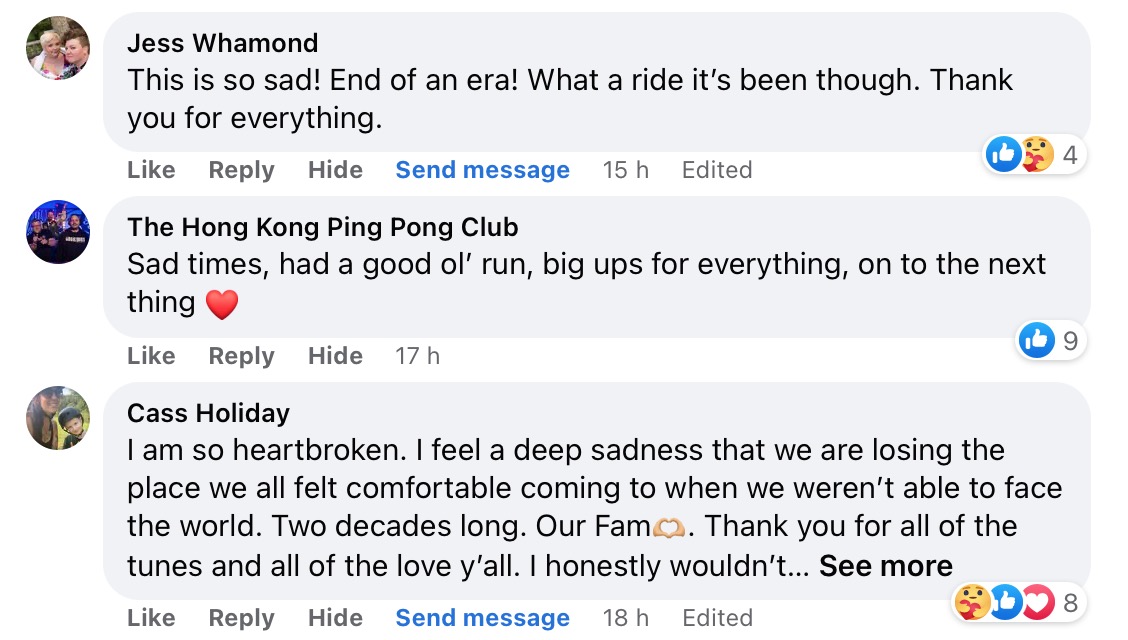
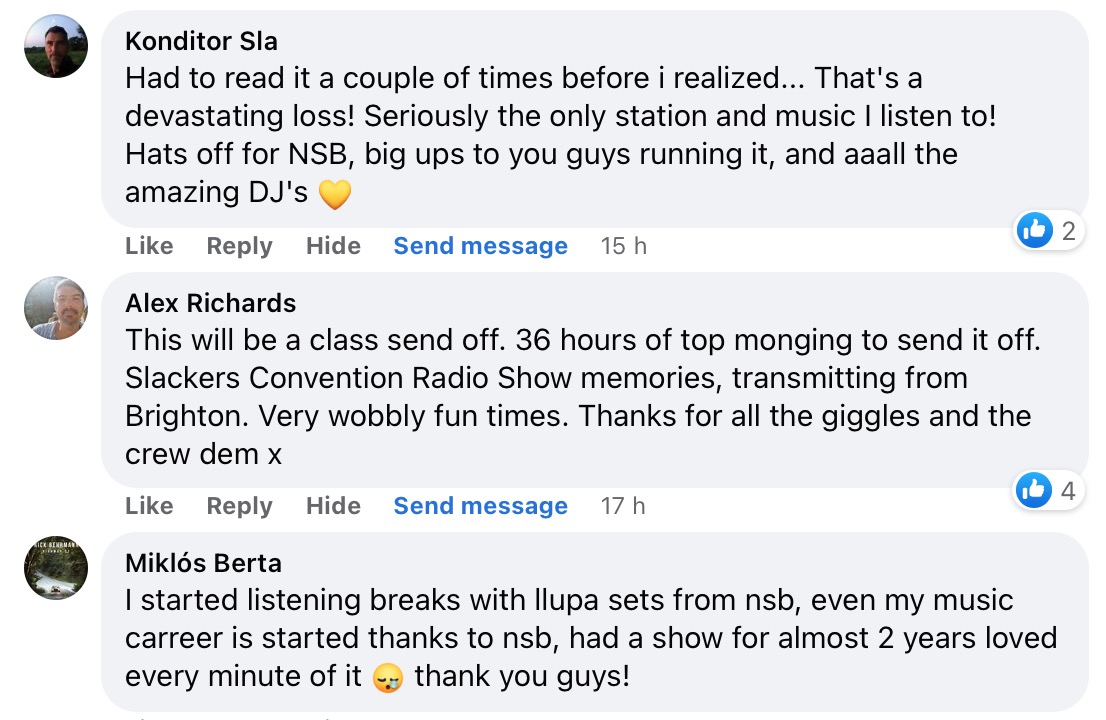
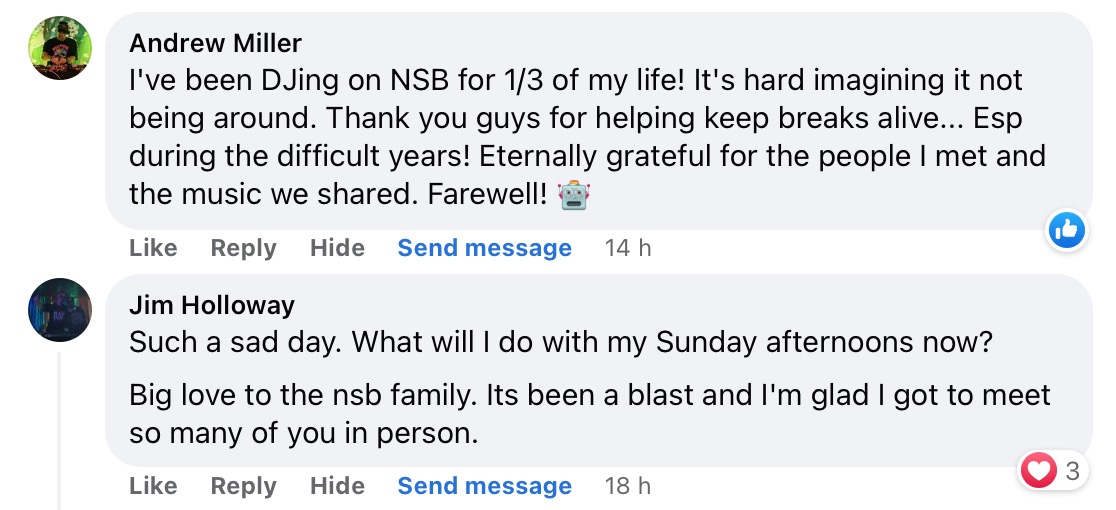
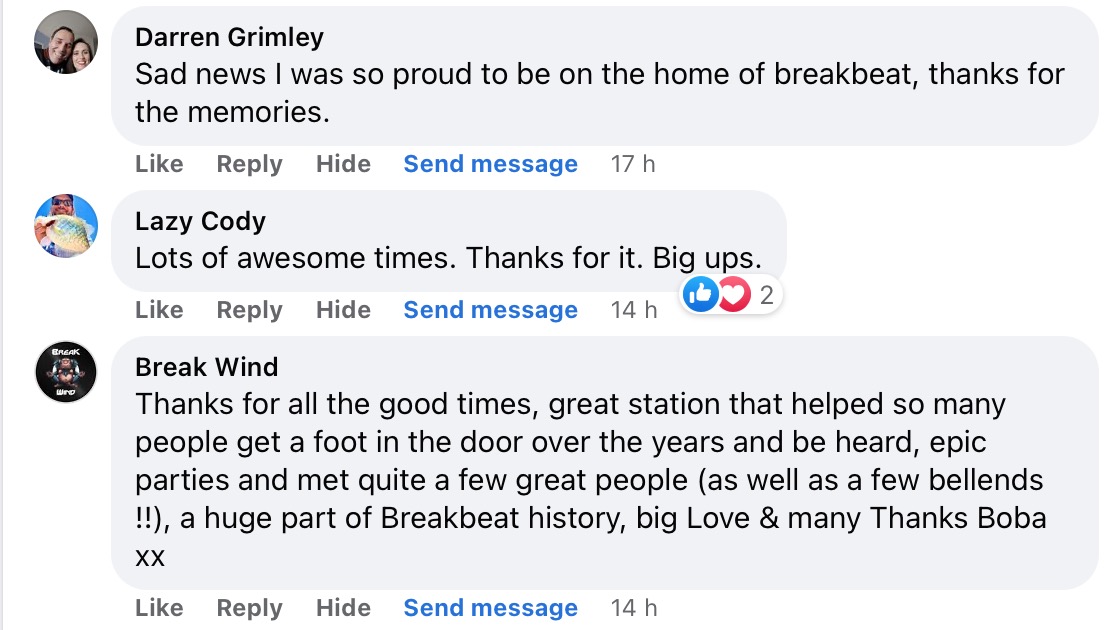
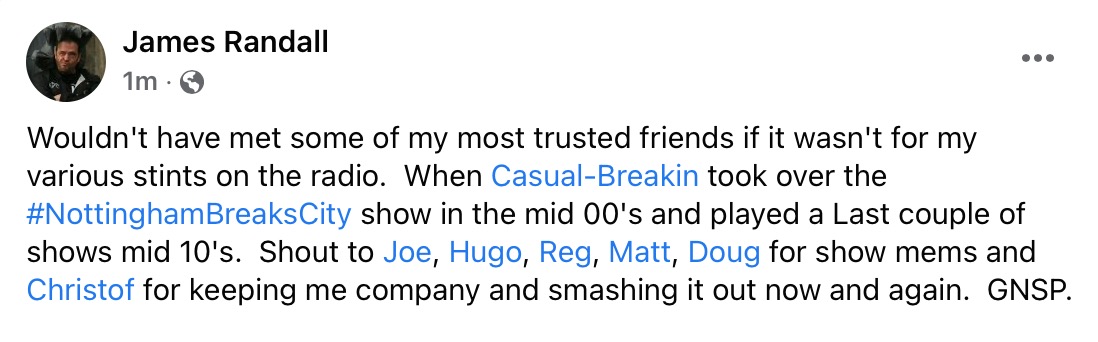
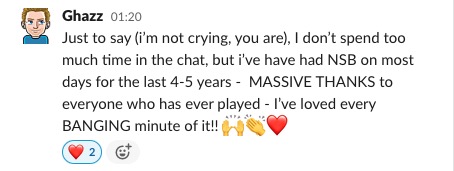
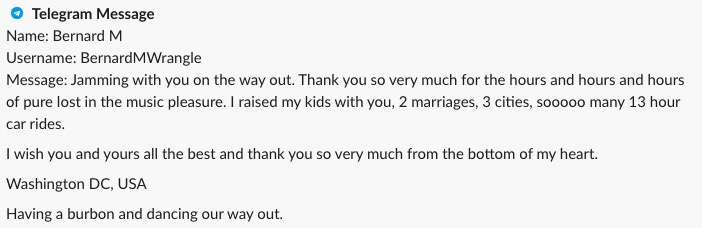
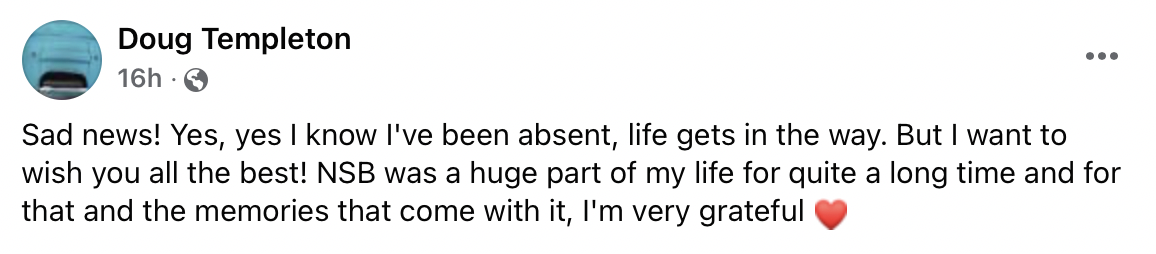
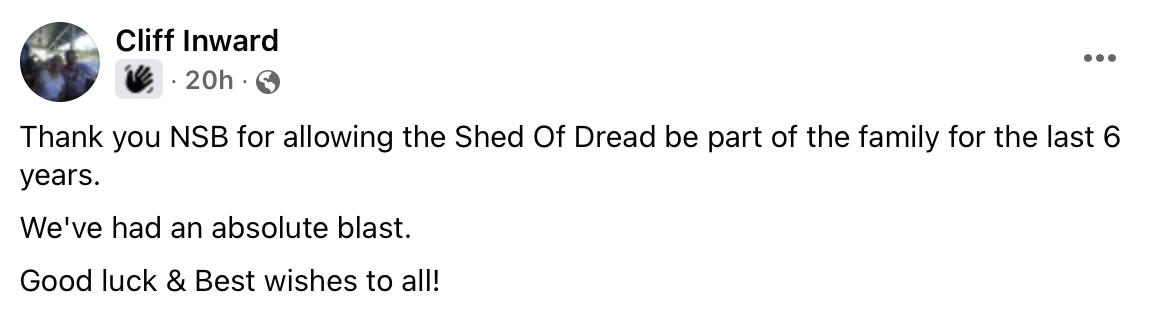
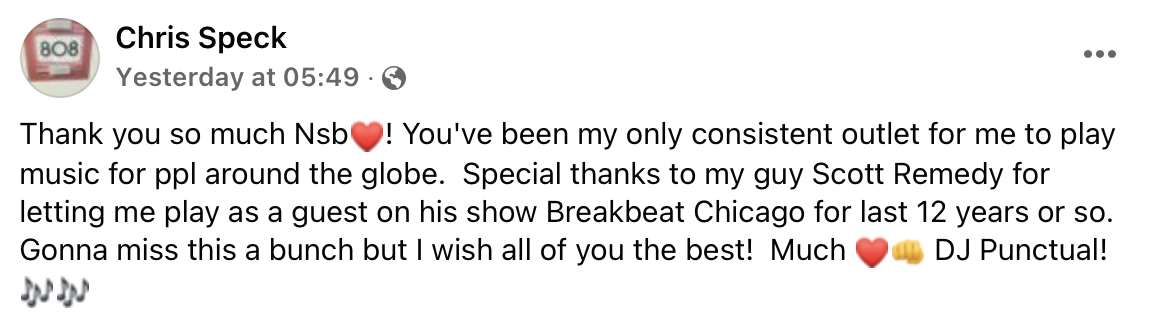
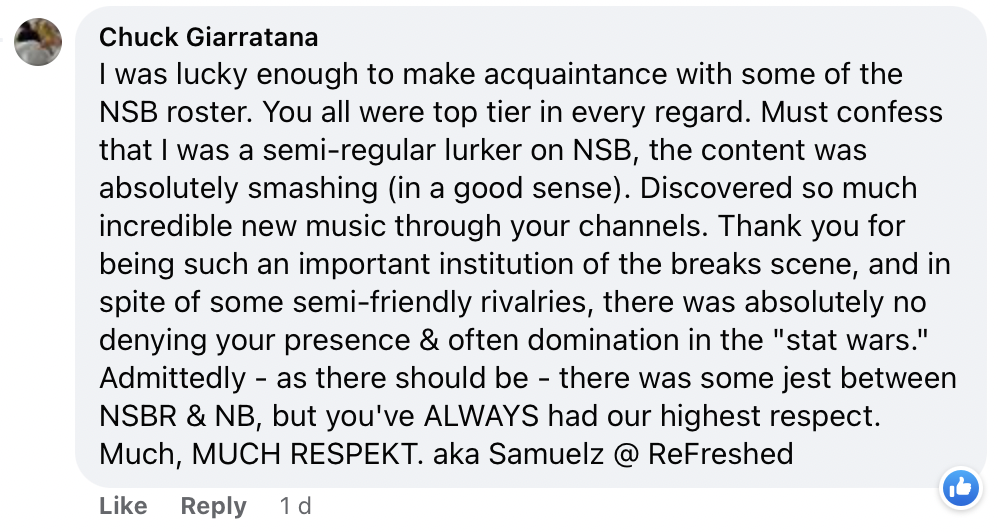
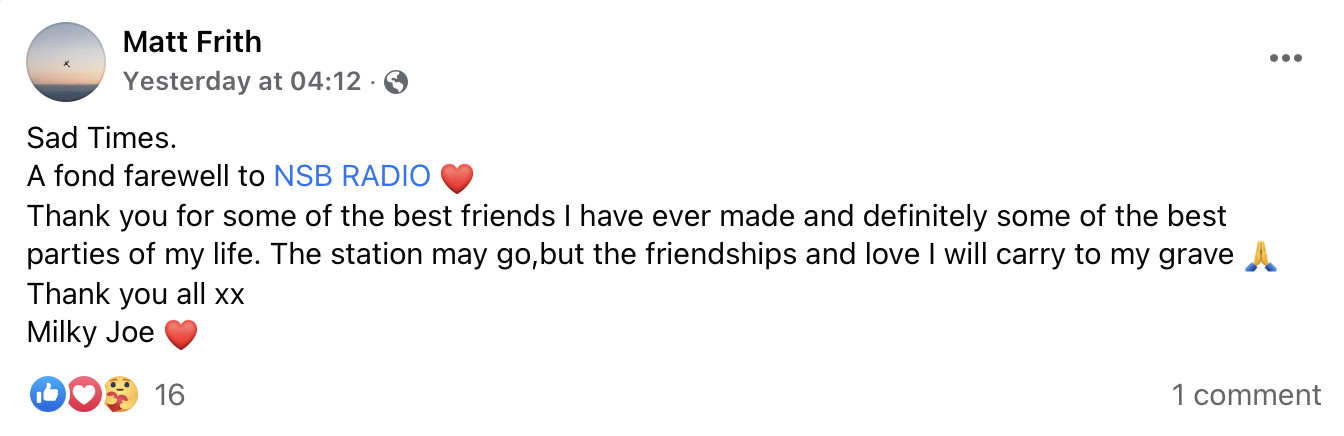
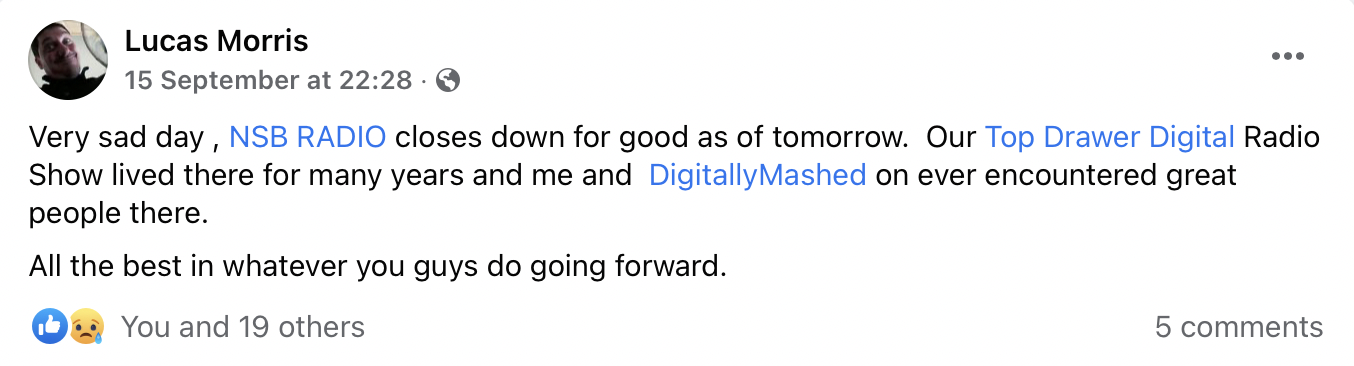
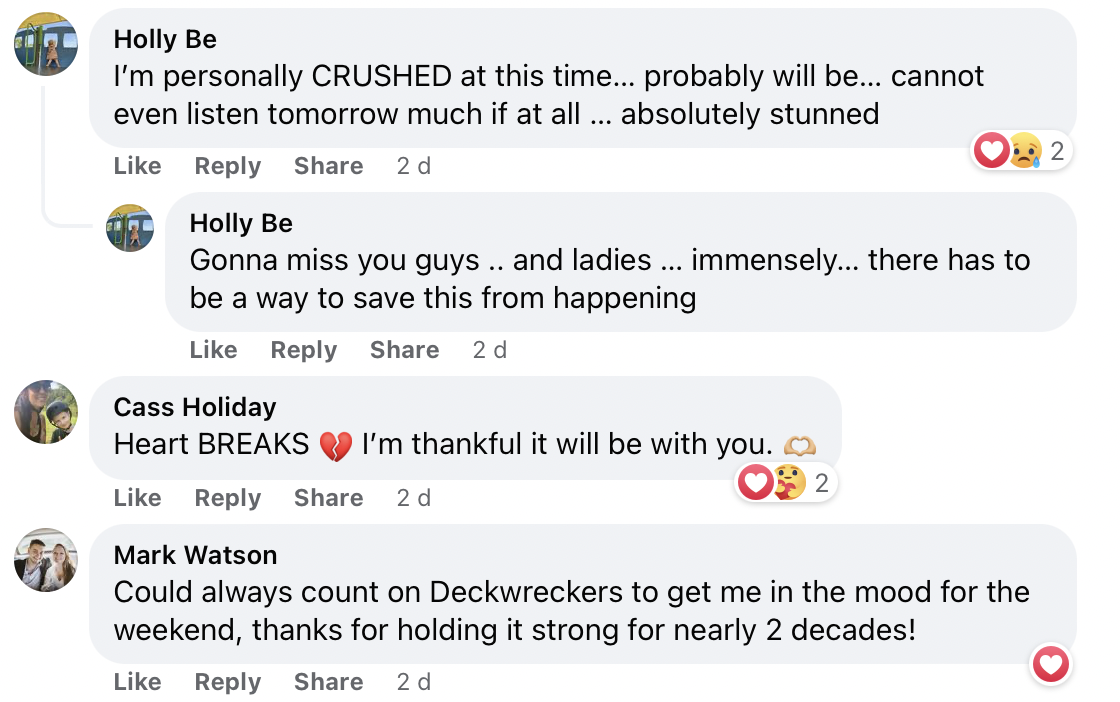
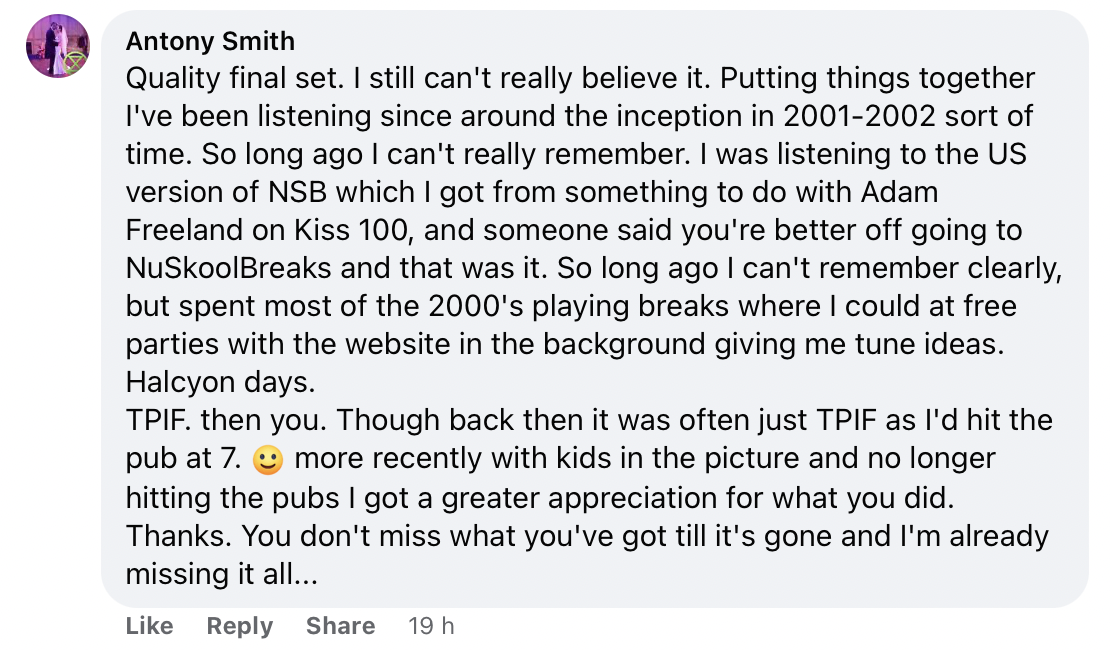
Thank You to...
Jimmy Brayks - For being a sound geeza and always keeping the ship going. He's like marmite, you love him or hate him. Gonna miss running this place with you. Won't miss the stupid o'clock messages and calls. Thanks for letting me be lazy and just tag my "thanks list" onto yours because its pretty much identical anyway!
Simon Plexus - for always letting me wake him up to rescue the server, thanks mate
Our girlfriends - for putting up with us for many many years while someone was wrong on the internet
Tony Slackshot - what a legend, did so much for the radio, for the agency, for the live broadcasts, great chap
Richie Balboa - Richie ball bags, whatever happened to him, he just disappeared, ran the radio for ages, great drunk face
Alikat - Ran the radio for ages and did lots of great things when I didn't have time, saved the radio a few times
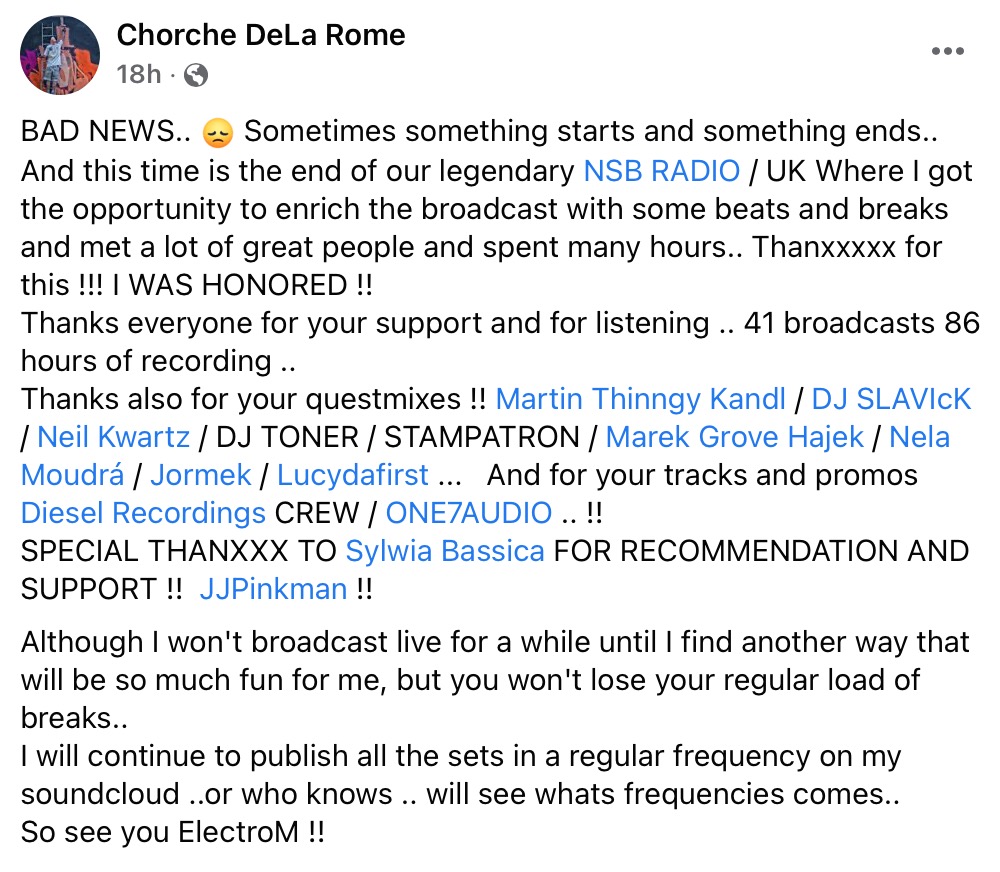
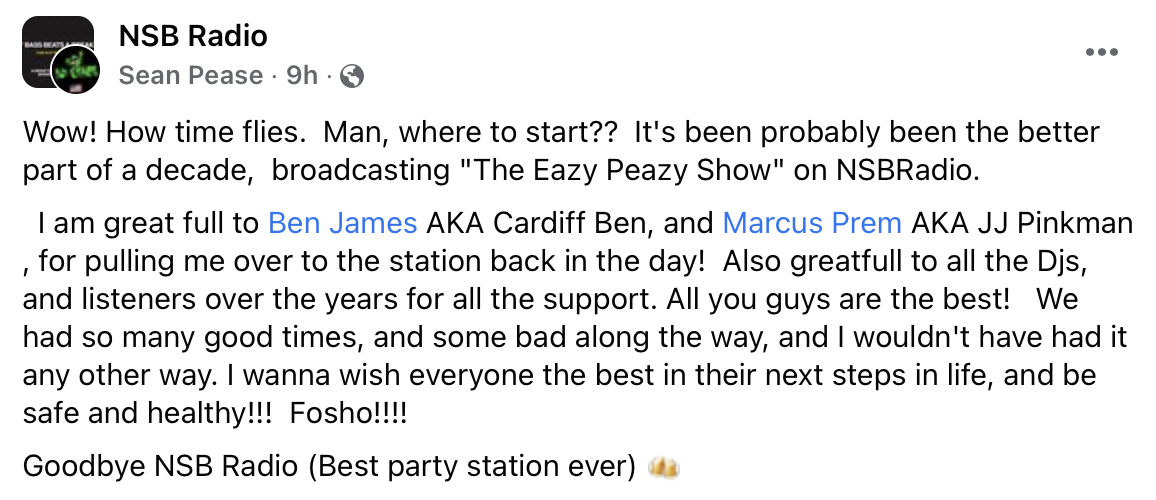
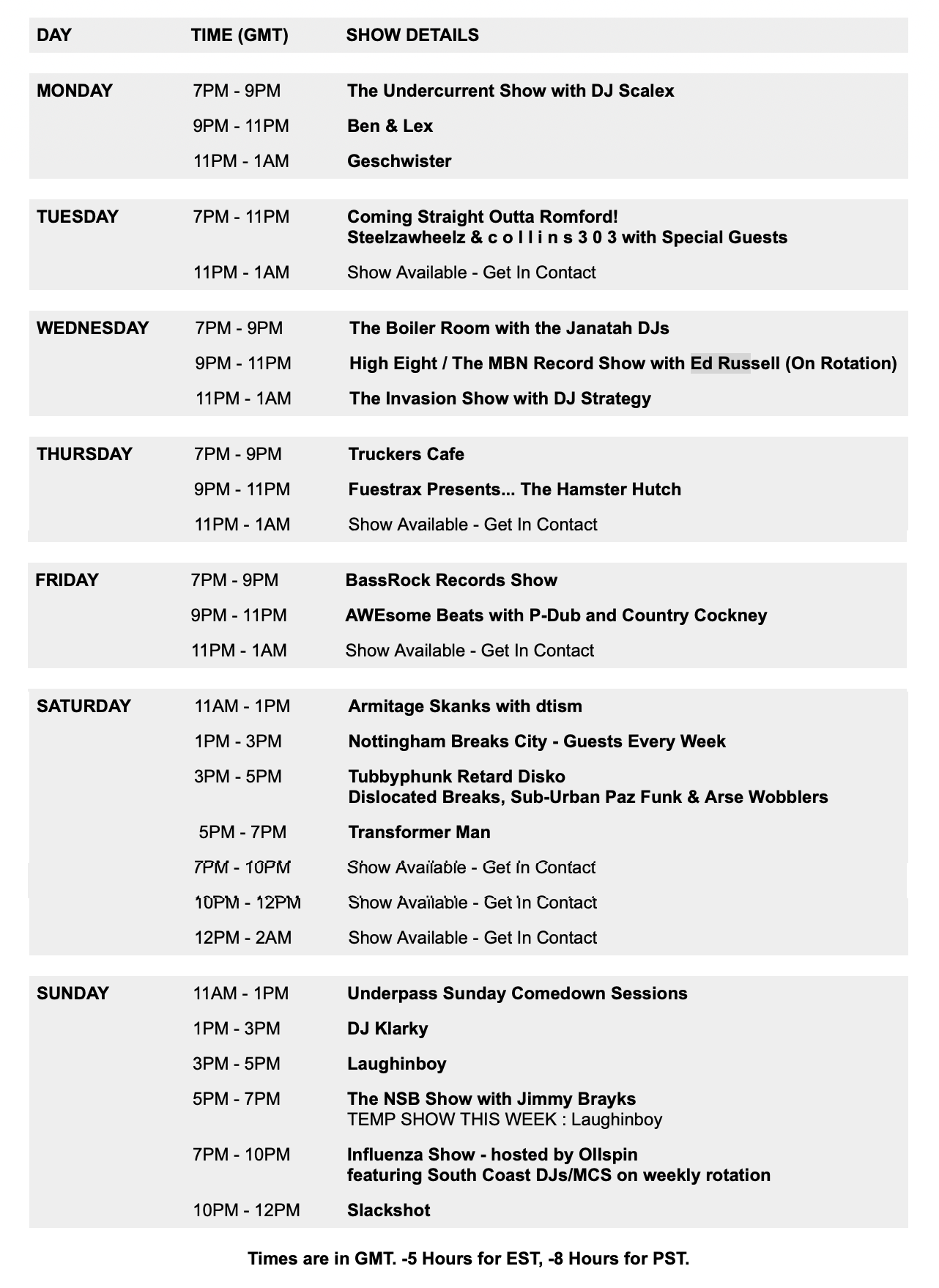
JJ Pinkman - Tireless NSB Radio schedule manager who has kept the radio and chat ticking over for years
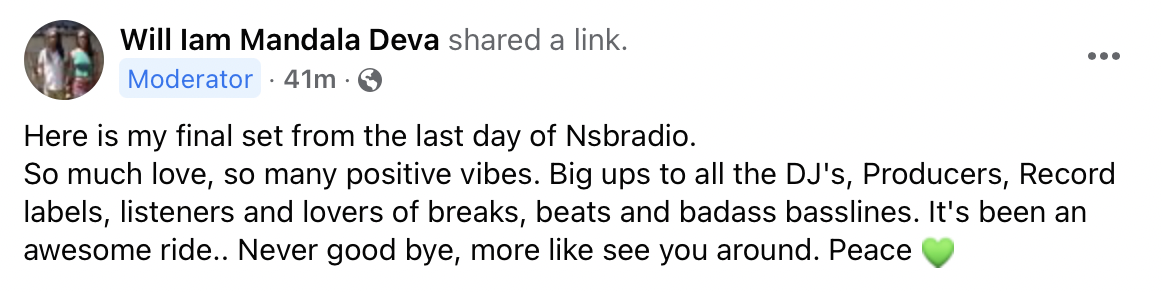
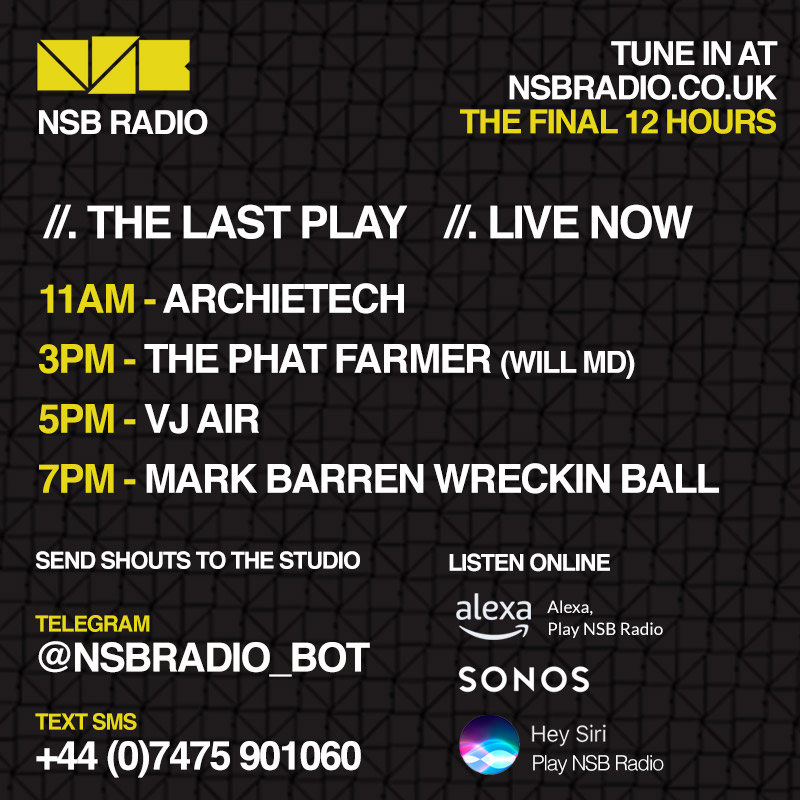
Will MD - Keeping the NSB Radio schedule in check for many years and always giving me a sanity check, obrigada
Shaman - for being a moderator on NSB when everyone else gave up, what a legend, thanks mate
Clodhoppa - steered the good ship NSB while Jim was not around for a bit and generally sound geezer, helped out a ton with design work, did the London Breaks Allnighter flyer which Jimmy still uses for practically any design he does
Miffy - used to help out a ton with the agency and label and things, thank you
Bobzilla - for designing the NSB logo, what a legend, now he paints birds, not the page 3 kind
Morphosis - for designing the original NSB Radio logo, legend
Rik - for designing the latest and final NSB logo, top banana - rikgrafiek.be
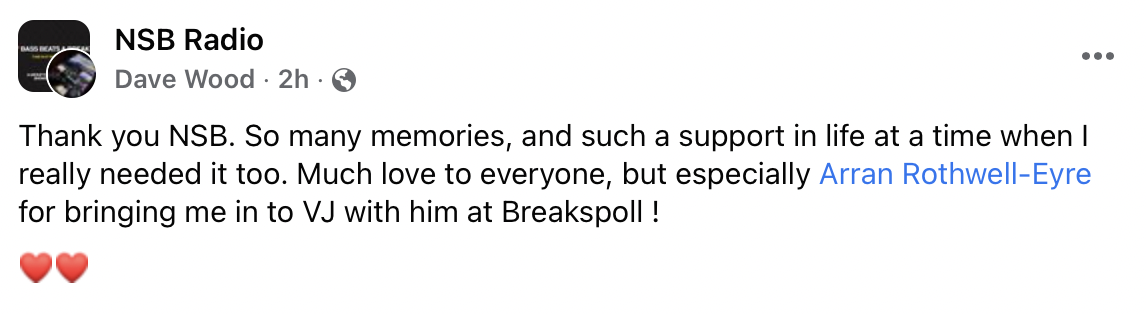
VJ Air - for his constant support of NSB parties, Breakspoll and his scene defining visuals
MysterEon - for recording the infamous NSB jingle that signified the servers were down AGAIN! Plus quality humour in the chatroom
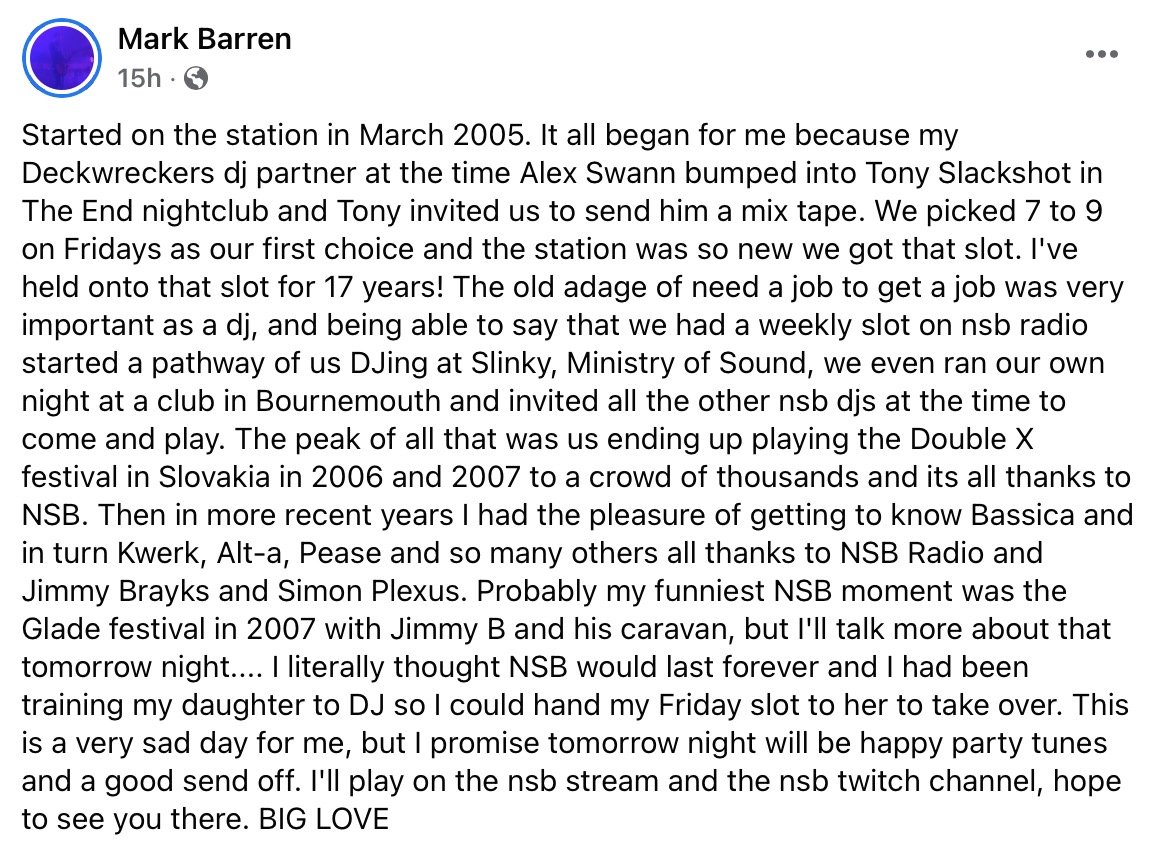
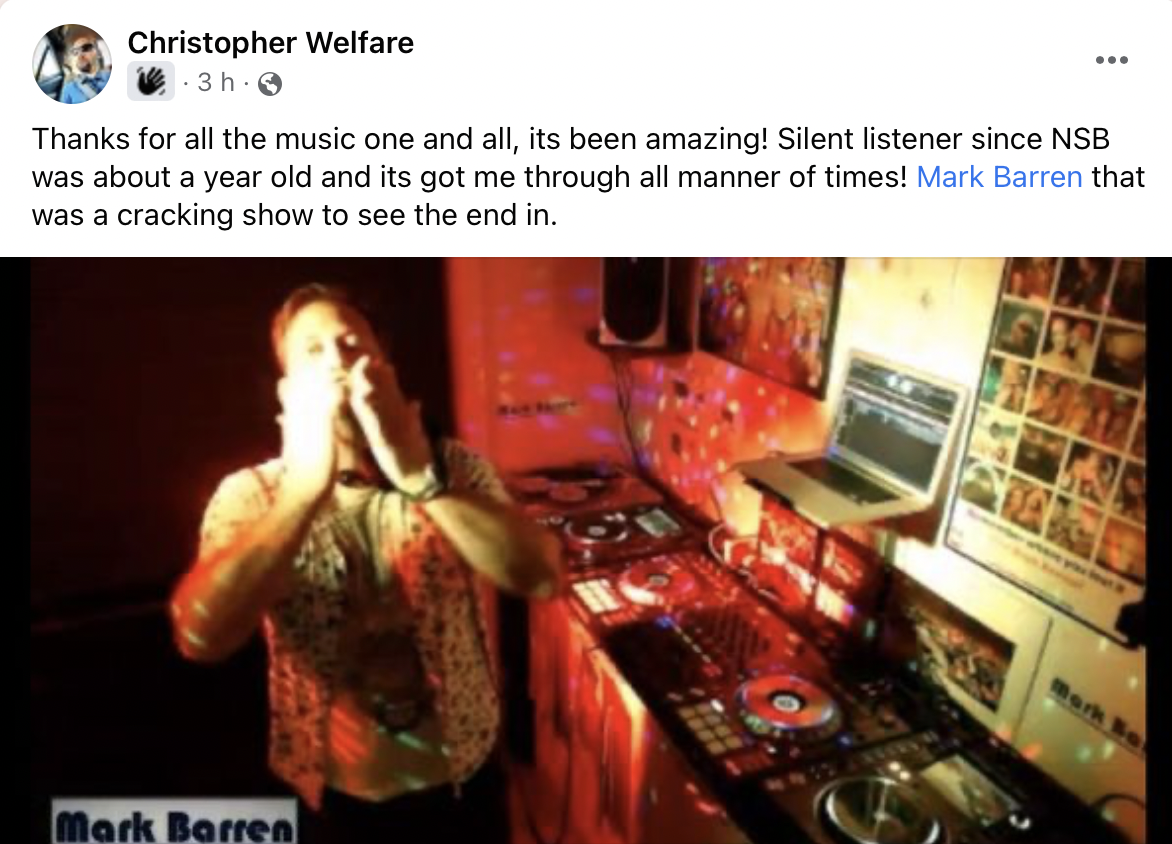
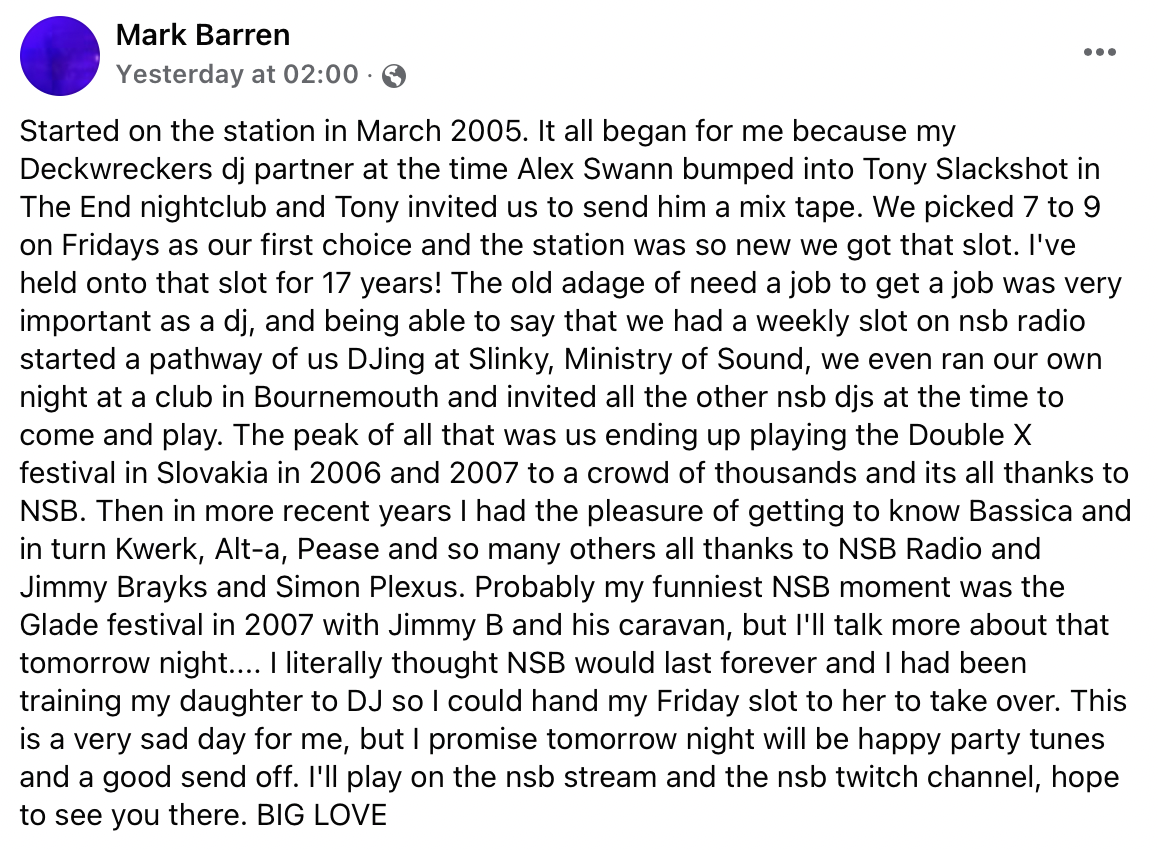
Mark Barren - for being the soundtrack of Friday nights for 20 years, plus some epic party sessions
TheScritch - for being a lovely chap
and helping out with coding back in the early days
JPrime - for coding up the original schedule system we used a version of for over 15 years, thank you!
Speshal - for being Speshal, love you mate wherever you are
Collins303 - for introducing me to Simon back in the day
Biff - for always giving support to the breaks sound and helping me out so much with events and access
Ali B - for giving NSB opportunities with Air
Jimmy Mofo - for being a top mate and a geezer and a big supporter of breaks and NSB from day one
Quest - for just being Questicles really, the forum couldn't handle him bless
Oscar at Rumour Records - for putting out a NSB compilation album in 2004 you crazy man
Ben Jurassik - for giving NSB lots of party opportunities, always bringing 30-50 friends and being a formidable constable in the breakbeat police.
Calxtra - for being in the chat room everyday, helping out with scheduling, and occassionally TYPING ALL IN CAPS right until the end
AG4111 - for winning the NSB forum with the most posts - no-one else came close or dribbled that much.
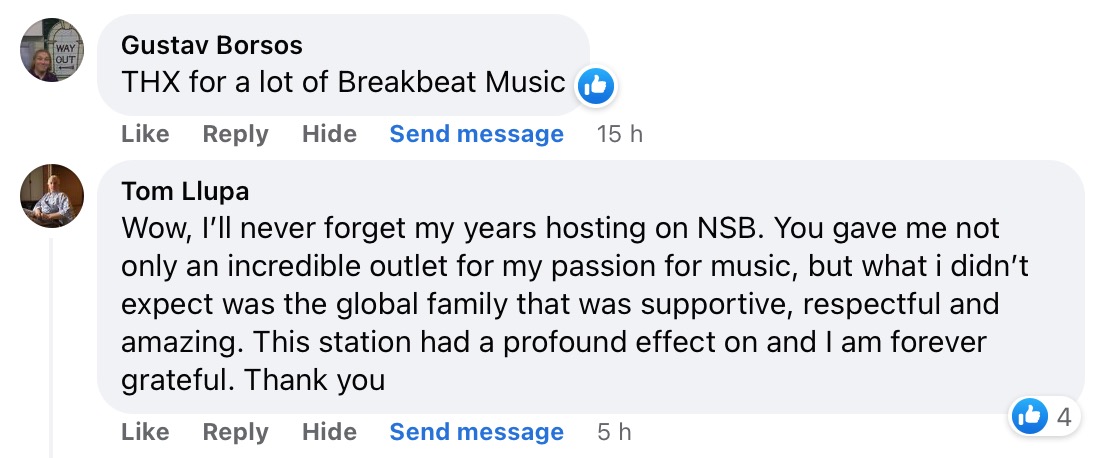
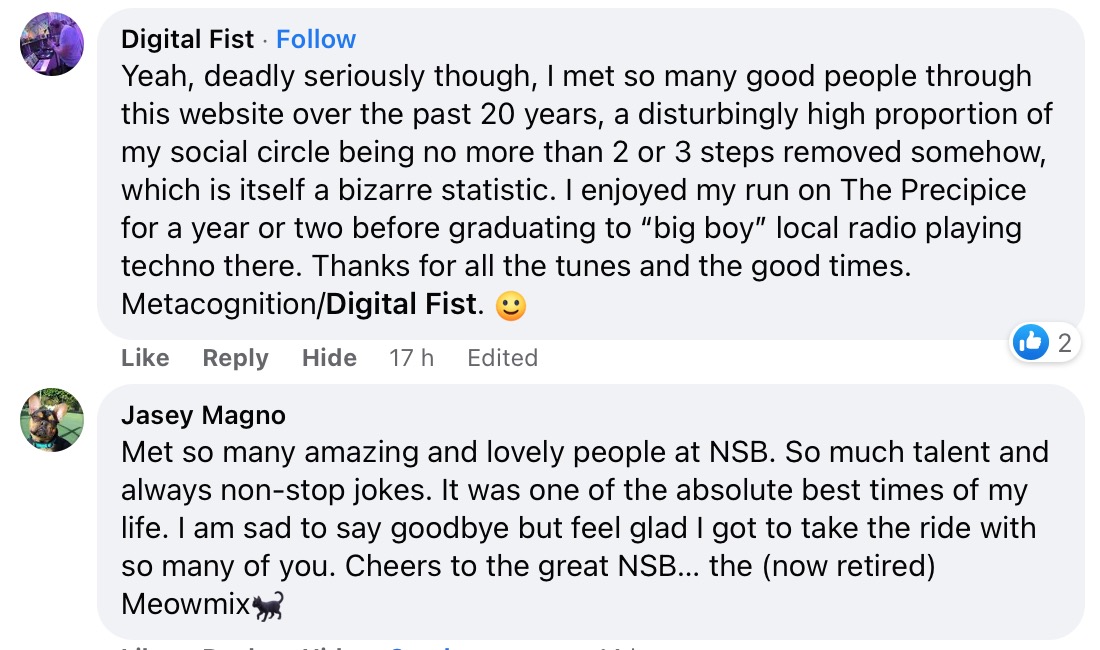
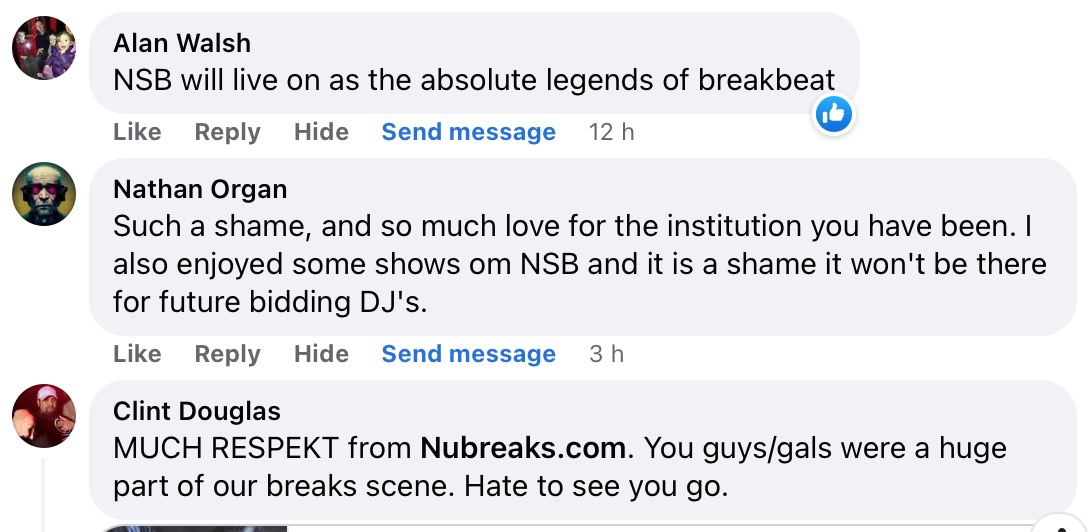
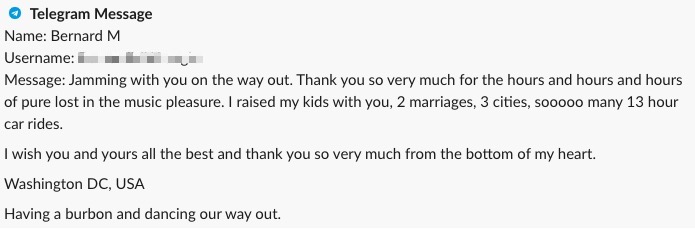
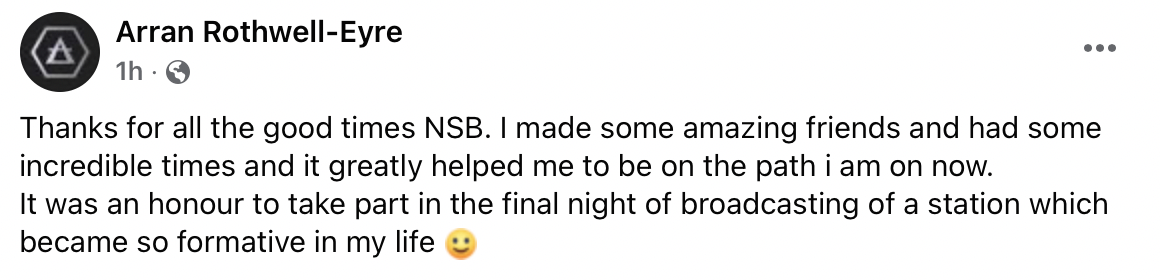
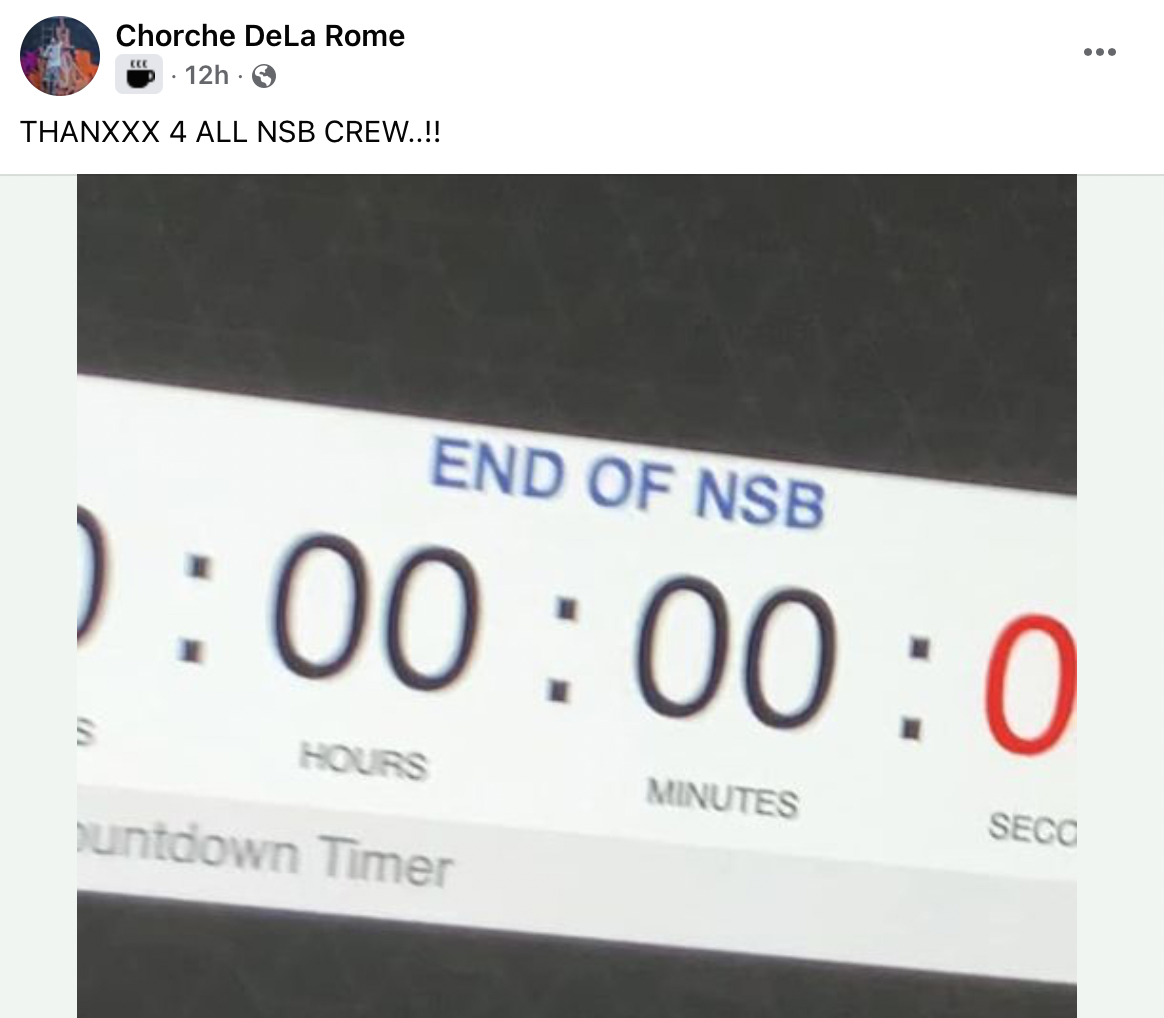
Thank you to all listeners, DJs, forum posters,
moderators,
scehdule managers, promoters, promo teams, club nights,
record labels and many more that have believed in NSB.
Love ya.
That's all folks